

Explore and Manage Tools
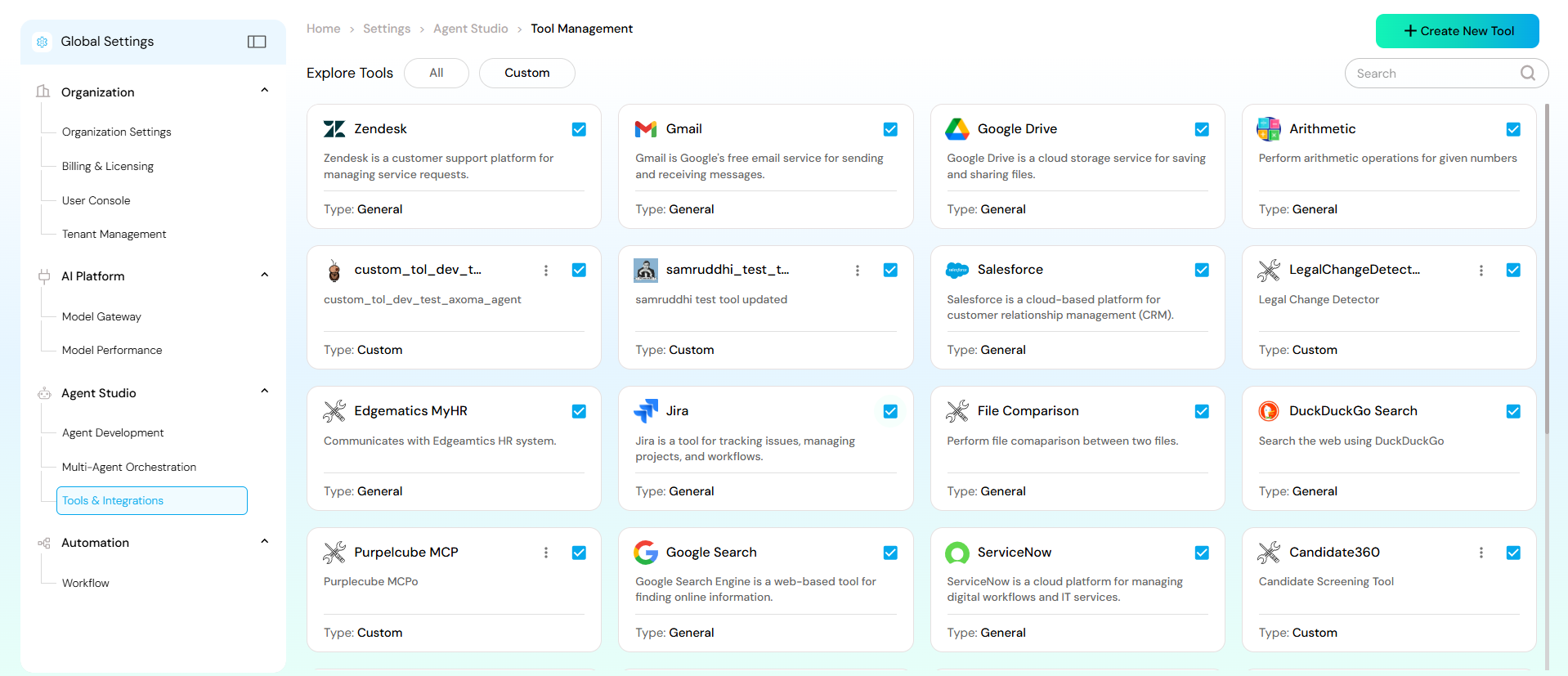
The main Tool Management dashboard (as shown in the screenshots) displays all available integrations categorized under:- All Tools: A complete list of all connected or available tools.
- Custom Tools: Proprietary or user-created integrations added via configuration.
- Tool name and logo/icon
- Brief description of the integration
- Tool type (e.g., General, Custom, etc.)
- Status indicator showing if it’s currently active or connected
Creating a New Tool (Custom Integration)
AXOMA allows users to create custom integrations for in-house tools or specialized systems through an easy configuration process.- Click the “Create New Tool” button.
- A configuration modal appears titled “Help us with the below details.”
-
Fill in the following required fields:
- Tool Name: A unique name that identifies the integration.
- Description: A concise overview of what the tool does or its purpose.
- Transport Mode: Defines the protocol for communication (e.g., SSE – Server-Sent Events).
- Server URL: The endpoint where the external service or tool is hosted.
- Icon (Optional): Upload an image representing the tool visually within the platform.
- Click “Connect” or “Update” to register the integration.
Tool Details and Action Configuration
When a specific tool (e.g., Purplecube MCP) is selected, detailed configuration and available actions are displayed.Tool Information
Displays the tool name, alias, transport mode, and server endpoint.Actions Table
Lists the callable functions or endpoints exposed by the tool’s API, such as:get_data_object– Retrieves metadata definitions of source and target entities.get_data_platform– Fetches available data platforms for a given project.get_projects– Lists user-assigned projects within the integration instance.run_data_flow– Executes data flows and returns related data objects.
Integration with Agent Development
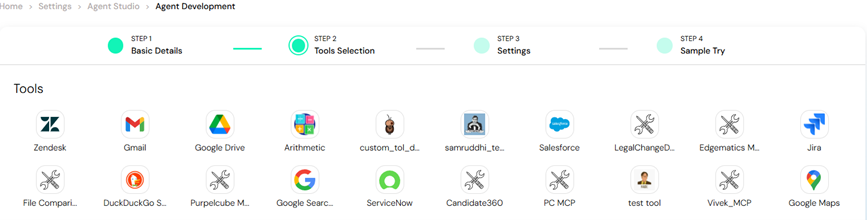
Once tools and actions are configured, they become directly accessible in the Agent Development module. Developers can:- Integrate these actions into agent workflows.
- Define when and how agents invoke specific tools.
- Automate decision-making and cross-platform interactions using natural-language logic.